Advanced Usage
Display Function
from typing import Any
from curses_fzf import FuzzyFinder

def display_name_property(item: Any) -> str:
    return item.name

fzf = FuzzyFinder(display=display_name_property)
result = fzf.find(data)
Since FuzzyFinder allows you to work with lists of any type
of items, you may want to define a custom behavior of how it displays your items.
In the above example we have a list of objects, using their name
property to represent each item in filtered list.
The display() function must return a single line
of text.
A CursesFzfAssertion exception will be raised, if the
function returns multi-line text.
If you want to present more complex information, have a look at the
preview() function.
The default behavior is to stringify the item provided:
FuzzyFinder(display=lambda item: str(item))
Related examples:
Preselect Function
from typing import Any
from curses_fzf import FuzzyFinder, ScoringResult

def preselect_items(item: Any, scoring_result: ScoringResult) -> bool:
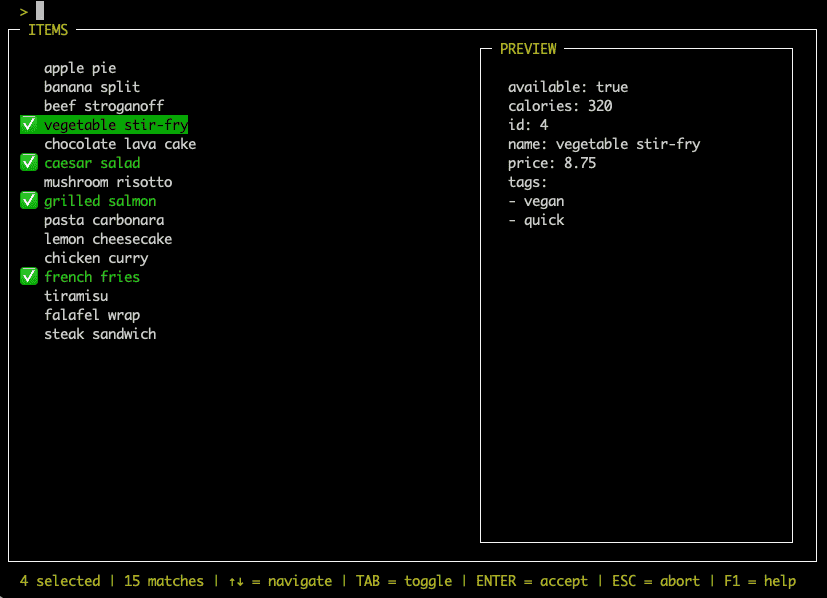
    return item.get("calories", 999) < 400

fzf = FuzzyFinder(multi=True, preselect=preselect_items)
result = fzf.find(data)
If you use FuzzyFinder in multi
selection mode, you can pre-select some items using the
preselect() function.
This function is expected to return True if the item should be selected.
The default implementation always returns False.
Related examples:
Preview Function
import curses
from typing import Any
from curses_fzf import FuzzyFinder, ScoringResult, Color, ColorTheme

def my_preview(preview_window: curses.window, color_theme: ColorTheme, item: Any, result: ScoringResult) -> str:
    preview_window.addstr(1, 1, item.description, curses.color_pair(Color.RED))
    return ""

fzf = FuzzyFinder(preview=my_preview, preview_window_percentage=50)
result = fzf.find(data)
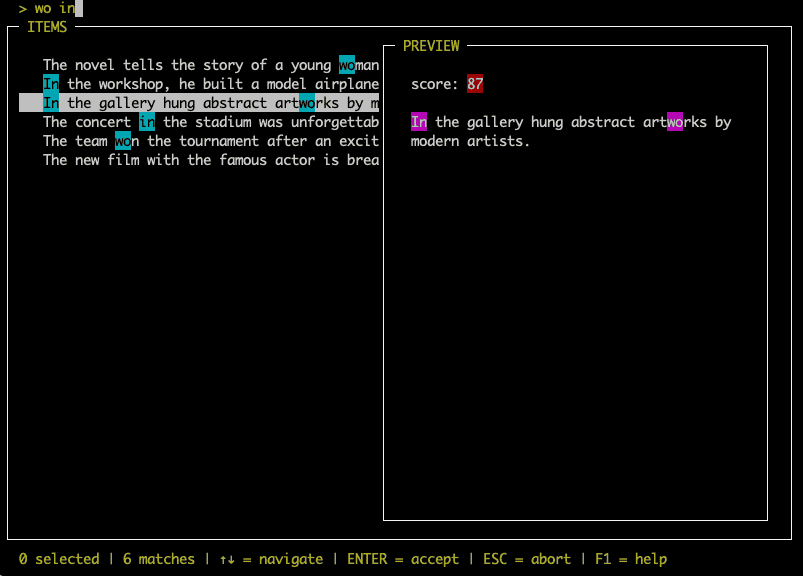
The preview() function (default None), if set,
will show a preview window on the right side of the
FuzzyFinder main window.
You can use this window to present additional information about the item.
There are two possible ways to use this function:
Either you ignore the provided preview_window and simply return a
string, that can also be a multi-line string.
The FuzzyFinder will take care of the text not leaking out
of the window boundaries.
For example you can yaml.dump() dict items.
Or you return an empty string and use preview_window to modify the
curses.window manually.
If you do so, you should ensure to handle window boundaries correctly to avoid
crashes, e.g. on terminal resizing.
See ColorTheme for information on coloring, the selected
color_theme is also provided to the
preview() function for easy access.
Not only the item from filtered list
is provided, but also the ScoringResult.
This allows to display scoring related information.
You can use preview_window_percentage parameter
of FuzzyFinder to define the width of the preview window.
The default value is 40 percent of the terminal window.
Don’t worry that the preview window might hide portions of your items,
you can toggle the preview window any time using Ctrl+P.
Related examples:
Scoring Function
from typing import Any
from curses_fzf import FuzzyFinder, ScoringResult

def my_scoring(query: str, candidate: str) -> ScoringResult:
    sr = ScoringResult(query, candidate)
    if sr.check_query_empty():
        return sr
    # ... scoring logic
    sr.add_match(match_index, matched_word, match_score)
    # ...
    return sr

fzf = FuzzyFinder(score=my_scoring)
result = fzf.find(data)
FuzzyFinder comes with built-in scoring functions
(default scoring_fzf()).
Scoring determines if an item is considered to match the
query the user entered.
The higher the score the higher the item gets sorted among the matches in the
filtered list.
If the score is 0 the item is considered to not be a match,
it will not be displayed in the list at all.
A scoring function retrieves the query as its
first argument and the candidate to match as
the second.
The candidate is the
display() string of the item in question.
The function is supposed to return a ScoringResult.
Related examples:
ColorTheme Customization
from curses_fzf import FuzzyFinder, ColorTheme, Color

fzf = FuzzyFinder(color_theme=ColorTheme(text=Color.CYAN))
result = fzf.find(data)
ColorTheme can be used to customize text colors,
e.g. to increase readability.
Use the indexes defined via Color enum.
If you want to register your own curses.color_pairs,
the indexes 1 to 29 are safe to use.
Related examples:
Keymap And Custom Keybindings
import curses
from curses_fzf import FuzzyFinder

fzf = FuzzyFinder()
fzf.keymap[curses.KEY_F2] = {
    "function": lambda: fzf.kb_move_items_cursor_relative(-2),
    "key": "F2",
    "description": "Move cursor up by 2 items",
    "category": "Custom Keybindings"
}
result = fzf.find(data)
FuzzyFinder is designed to be highly customizable.
For example you can define your own keybindings by modifying the
keymap dictionary.
The keys are the key codes as returned by curses.getch(),
the values are dicts containing the function to be called and optional
metadata such as the key name, description, and category for the help screen.
The minimal requirement for a keybinding is to provide a "function" key,
its value will be called as a function when the user presses the corresponding
keybinding.
If you also provide a "key" and "description", this keybinding will be
shown in the help screen, which can be opened by pressing F1.
You can also provide an optional "category" to group your keybindings in
the help screen, the default category is "General Keybindings".
Related examples: